

How to create RSA keys to access your server.
In the terminal on your local machine, type the command:
ssh-keygen -t rsa
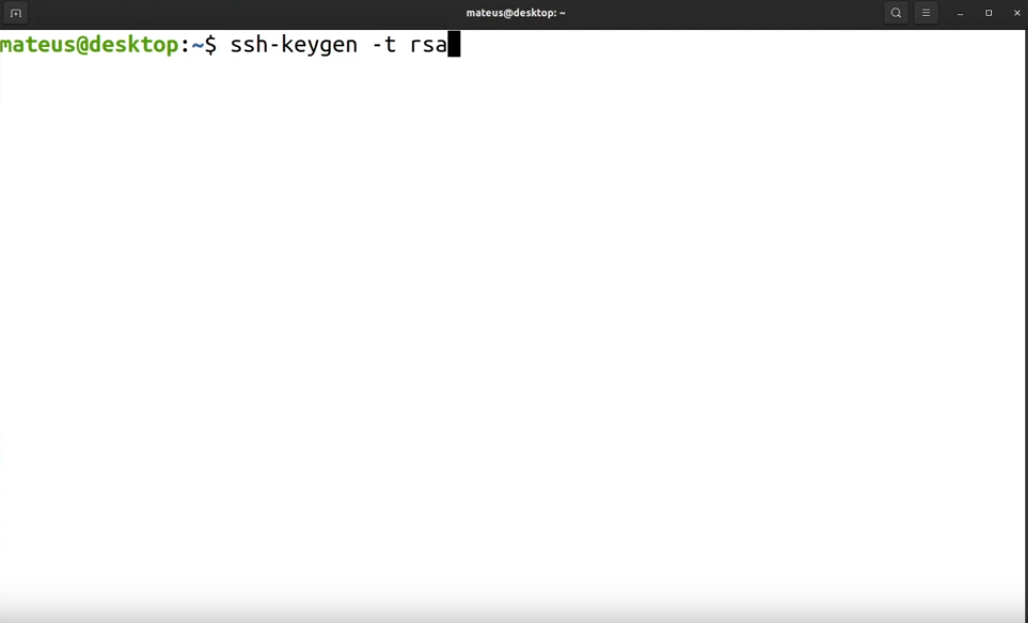
Press enter and then the terminal will return the location where you want to store your keys which by default will be in /home/user/.ssh/id_rsa you can configure another directory if you want.
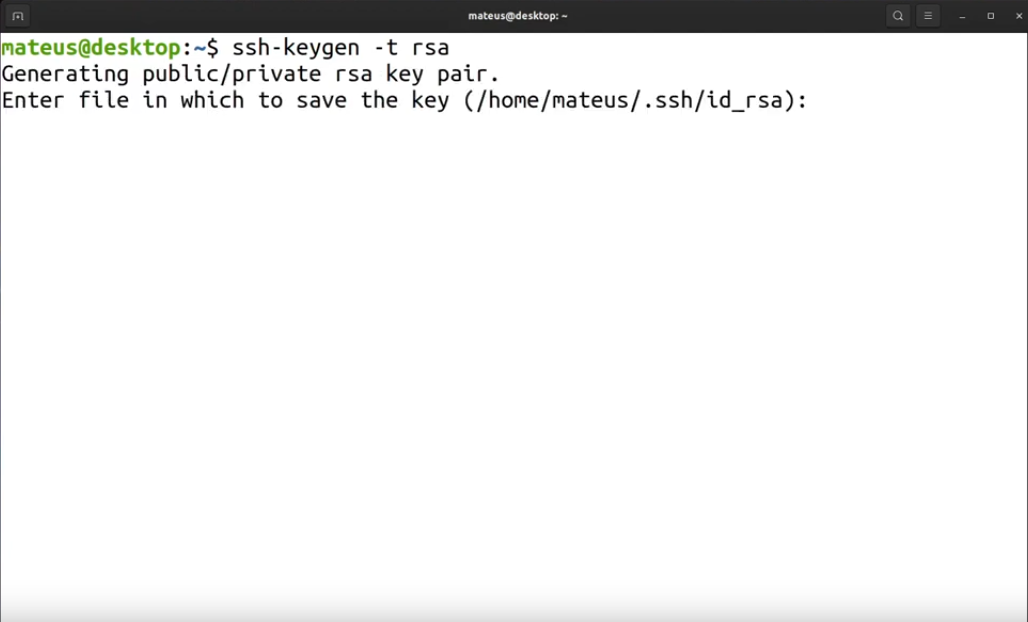
Fill in a strong password that you must remember and then confirm your password.
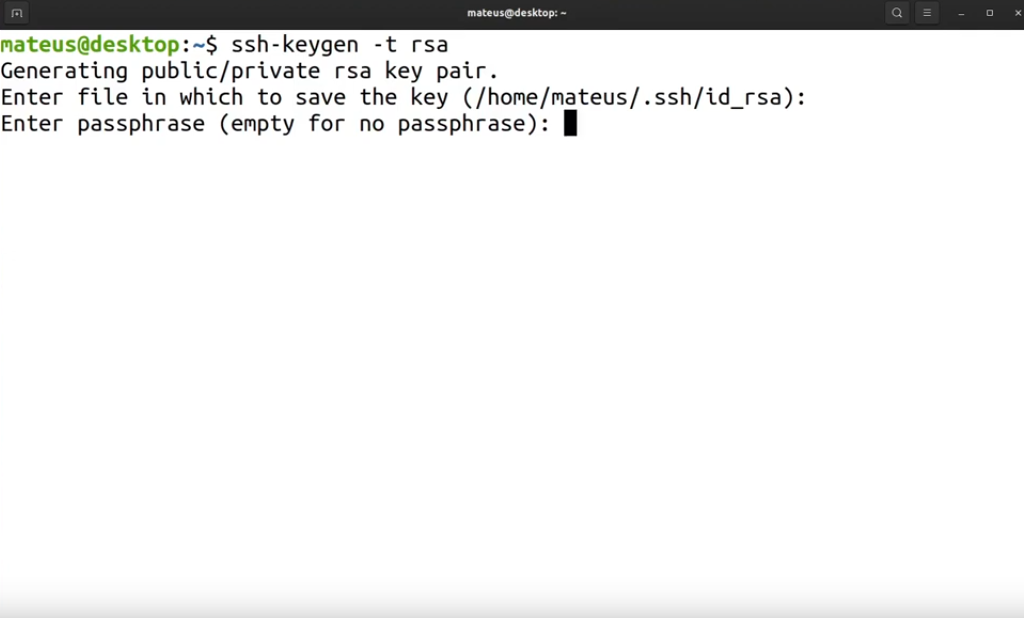
After pressing enter the keys will be generated.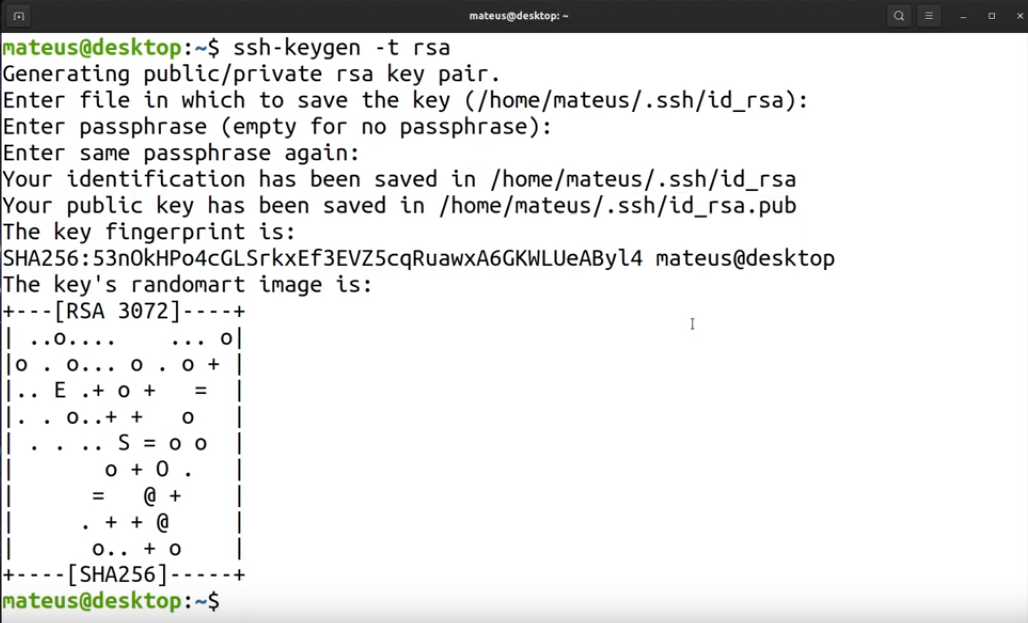
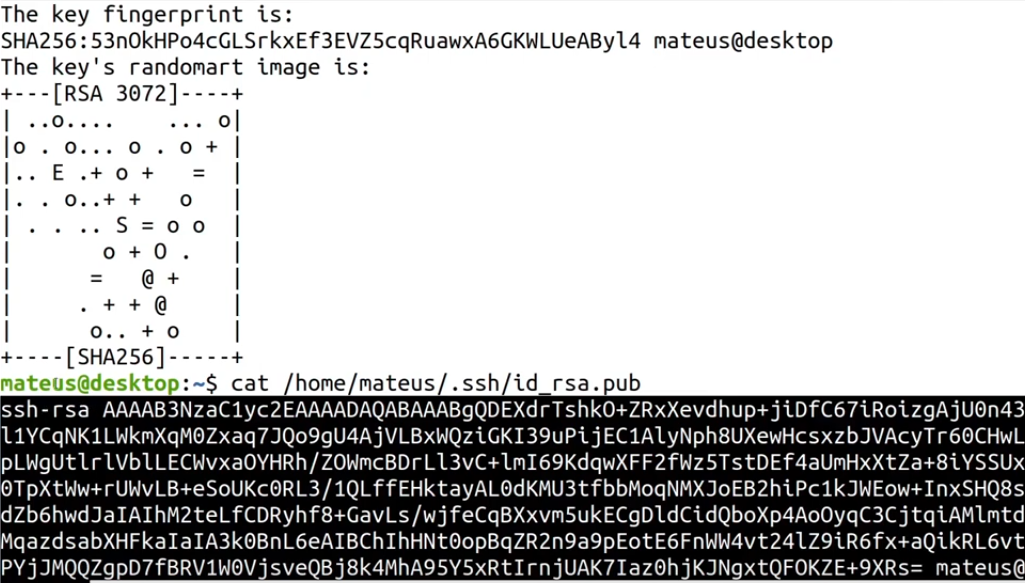
Now you need to copy the contents of the public key. You can use the command:
cat /home/user/.ssh/id_rsa.pub
Copy all information returned to the terminal.
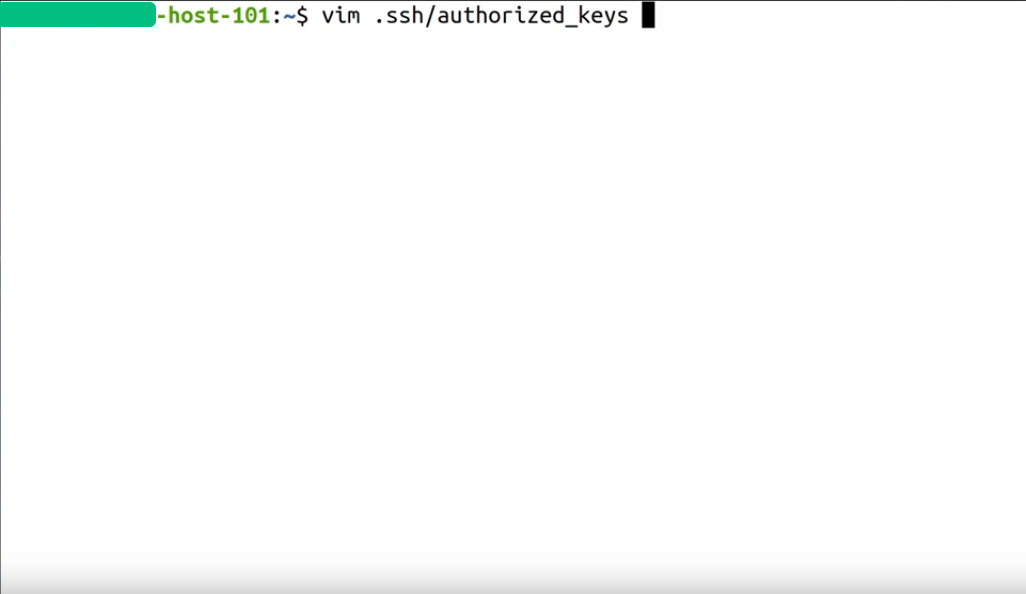
Connect to your server over SSH and open a text editor like nano or vim to edit the contents of authorized_keys.
vim .ssh/authorized_keys
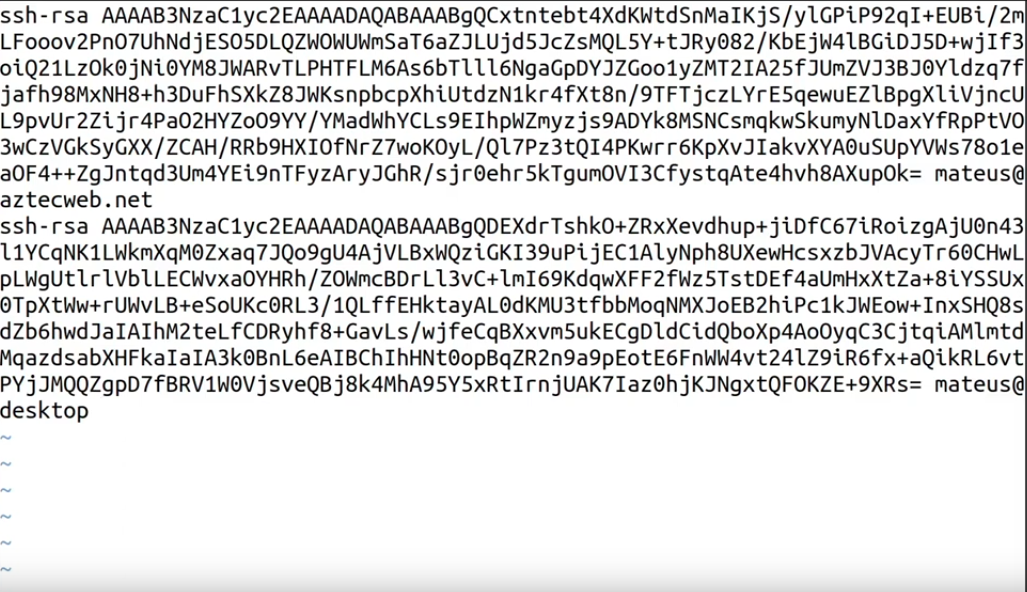
Add the content you copied from your local machine using cat /home/user/.ssh/id_rsa.pub
Save the file and disconnect from the server.
Now connect to the server using the key using the following command:
ssh user@serverip -i .ssh/id_rsa
*Remember to change user to your username and serverip to your server's IP.
After that, you will be asked for the password you created along with the key. Fill in and press enter and then you will connect to the server using the key you created.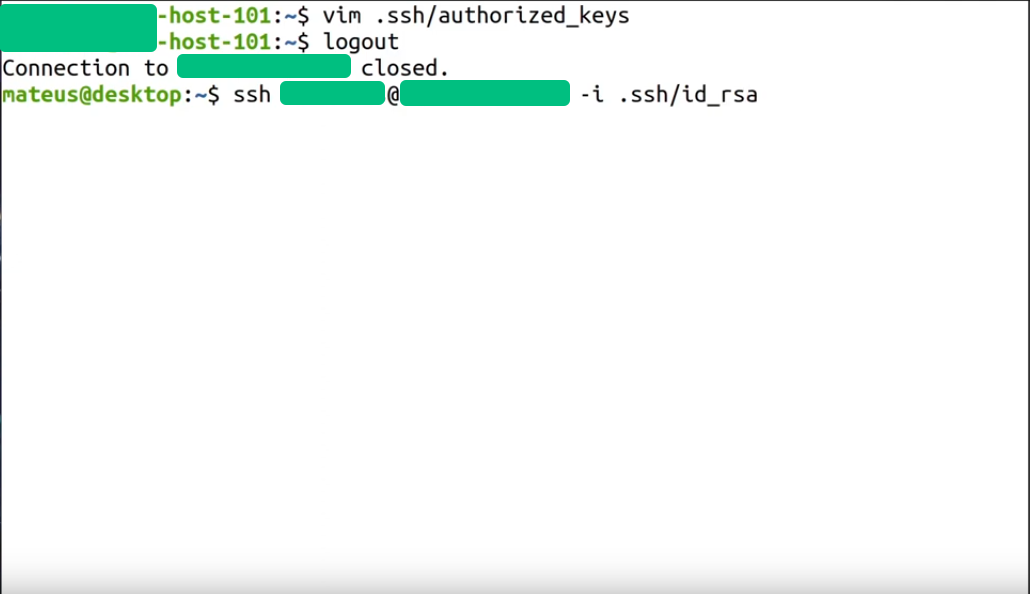
Additional security steps.
You can close password access to your server, leaving it accessible only with your RSA key.
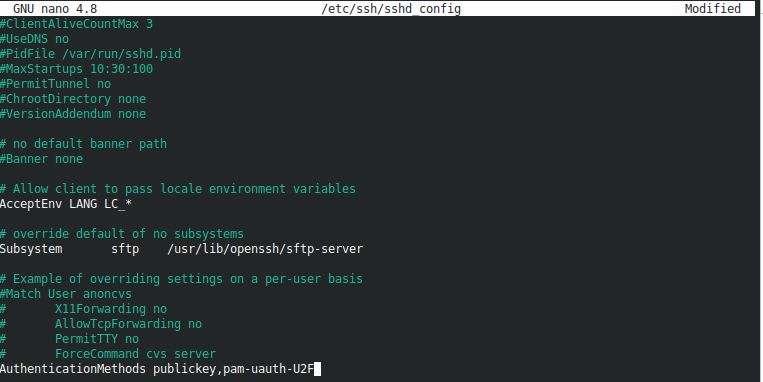
Logged into your terminal, open the file with a text editor such as nano or vim.
sudo nano /etc/ssh/sshd_config
Add at the end of the file:
AuthenticationMethods publickey,pam-uauth-U2F
Save and close the file.
Enter the command:
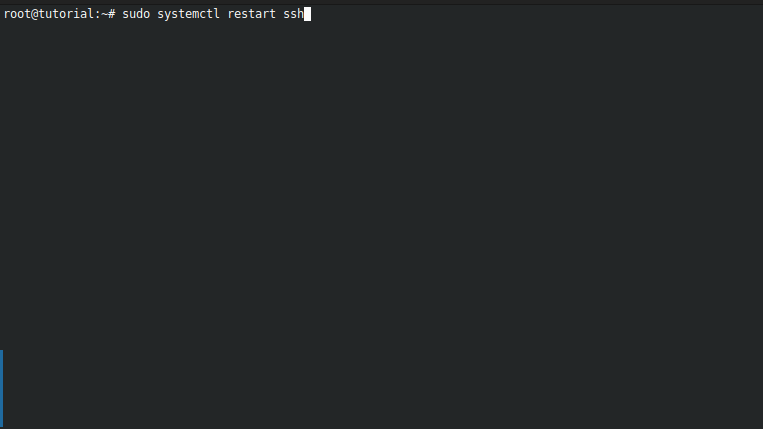
sudo systemctl restart ssh