




















Different users have their requirements for using any application. For finding any good application which makes our task to be done quickly. Users usually use the Android Play Store for downloading any application. Nowadays many third-party play stores are used to download applications. Such third-party stores do not check for any malicious application. According to ethical hacking researcher at the International Institute of Cyber Security, you can even notice many apps revolving around third-party stores. When installing any application, many times users forget to check the permissions.
Downloading applications from third-party stores can cause damage to your mobile. Such an application can capture your photos from your mobile front camera. We will show you some methods to detect spy applications.
CHECKING RAM STATUS:-
Several times you may encounter unusual behavior on your mobile. Your mobile might be consuming resources of RAM. Which may slow down your mobile performance. While installing, Users don’t check for permission what the application is asking for. Always check for permission. Nowadays many companies offer inbuilt applications for checking the usage of memory. Memory Statistics or Memory Notification Bar which helps Android users to know the utilization of memory.

CHECKING RUNNING SERVICES:-
- Nowadays mobiles are coming with the latest Android version or with the most recent versions. For example -We are using Xiaomi Redmi Note 4 with Android 7.0 Nougat (Non-Rooted) which comes with an option to check for permissions.
- From Android 6.0 Marshmallow, Google has hidden the feature of running applications or services. But in Android 6.0 running services can be shown through Developer options. To enable Developer options. Go to Settings < About Phone < Baseband Version, or you will find with Mobile Manufacturer Name.
- In Xiaomi Miui Verison. Click simultaneously to enable Developer Version. Then go to Developer Version < Running Services.
- There you will see all the running services.
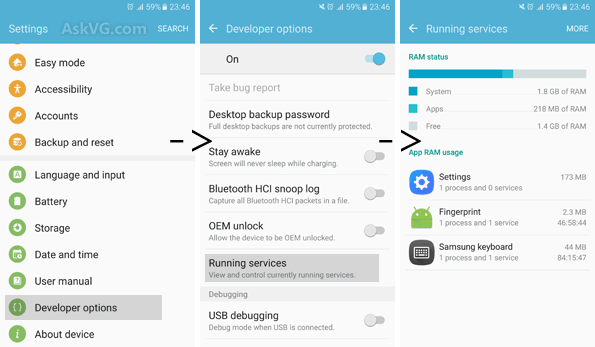
- In running services, you will find all applications & services that can be stopped by clicking on the particular application.
- In Android 7.0 Nougat you cannot see running applications/ services but you can disable data usage of mobile Data & Wifi usage.
- If any unusual behavior is found. You can uninstall any recent application which you have installed. In some cases, malware is so hard-coded that applications show internal system errors.
- For example – Below you can see the internal application which can’t be uninstalled.
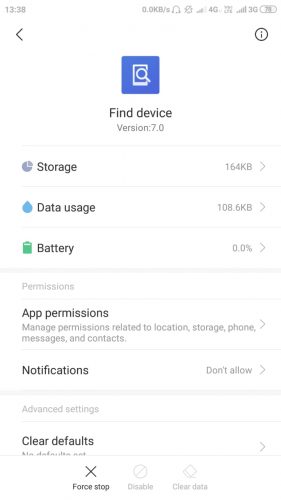
- In the same way some malware can’t be uninstalled by going directly to the application manager. If you have many applications on your mobile. Go to Settings < Application Manager < Click on Arrow see on the right-hand side. Then click on App Installation Time. There you will notice a recent application that you have installed.

- After Knowing the recent application, Uninstall it. In some cases as mentioned above if application can’t be uninstalled. You can disable its permissions & data, and Wi-Fi usage.
DISABLE MOBILE DATA & WIFI USAGE :-
- Android 7.0 gives an option to disable data or wifi usage. Open Settings < Application Manager < Click on Any Application. You will see an option to disable data usage. In Redmi Note 4 Android 7.0 Nougat For checking Data & Wifi Usage. Open Security Application.
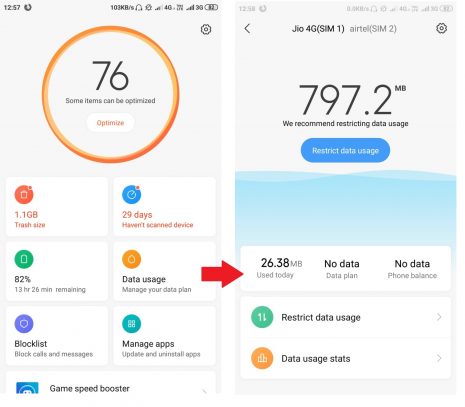
- Click on Restrict Data Usage. And select the application which you want to allow for Data usage or Wifi usage.

- If you found any unusual behavior. You can disable its data & wifi usage. According to current stats above listed applications don’t require Internet.
CHECKING FOR APPLICATION PERMISSIONS:-
- For changing the permission of any application. In Android 6.0 Go to Settings < Application Manager < Click on any Application < Permissions.
- There you can manage permission for any application. For example – Below you can see permission which have been granted by the user.
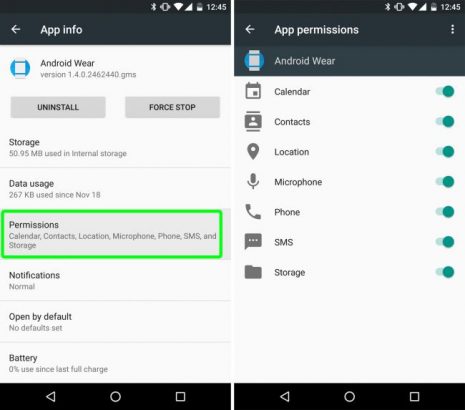
- Above you can see permission of application.
- In Android 7.0 Nougat, For changing permission go to Settings < Permissions < Permissions

- Click on any permission, Here you will see a list of applications with granted permission.
- For checking system app permissions. Open any app permission. Then Click on the Image Button on the right side. For showing System Applications.

- Above you can see internal application permission. You can also grant or deny listed system permissions.
UNINSTALLING APPS THROUGH ADB:-
- In Some Cases, the malicious application is still not uninstalling using the above methods. You can uninstall it through adb.
- For using adb. You need to download & install adb installer. Follow this link for configuring & using adb shell.
- For testing, we will use Xiaomi Redmi Note 4 with Android 7.0 Nougat Non-Rooted.
- For uninstalling any application you need to know the application package name. To know the application package name. Download app: https://play.google.com/store/apps/details?id=com.csdroid.pkg&hl=en
- Open Package Names. Find the app name you want to uninstall. Remember its application package name.
- Connect your mobile with a computer. Open CMD as administrator. type adb uninstall <application package name > adb uninstall com.adobe.reader

- The above screenshot shows that the application has been uninstalled.
USAGE OF THIRD-PARTY STORES:-
- As per the ethical hacking researcher of International Institute of Cyber Security(iiCyberSecurity), there are many third-party stores that are used to download applications. Many users download applications from third-party stores.
- You can also find many paid applications for free on such third-party stores. Using such third-party stores can cause to mobile devices.
- Below you can see third-party stores. These might show paid applications free but such applications also come spyware.

- Avoid using such third-party stores. Third-party stores might cause to your Android devices.
CHECK PROCESS STATS:-
- As per the mobile hacking expert of the International Institute of Cyber Security, process stats contain stats of applications that have been used recently. It shows the amount of time spent on the application.
- Go to cd /data/systerm/procstats && ls
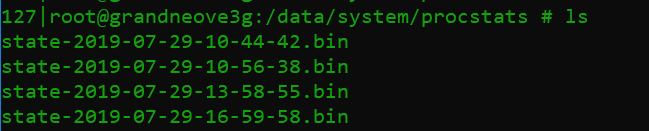
- The above shows the list of procstats usage of applications. We have opened the first stat file in Winhex editor. Download Editor: https://www.x-ways.net/winhex/
- For opening the stat file. You need to change the permission. For changing permission type chmod 777 stats-2019-07-29-10-44-42.bin
- Copy stats-2019-07-29-10-44-42.bin /storage/emulated/0/Downloads
- Copy the file into your computer. Open stats-2019-07-29-10-44-42.bin in Winhex.

- The above file shows the stats of applications that have been used recently.
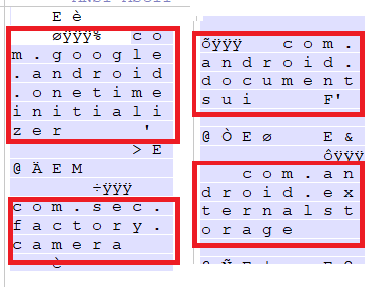
More Closer Look Of the Application Stats
CHECKING BATTERY STATS:-
- For checking for the batterystat.bin which contains the information about the consumed battery of every individual app.
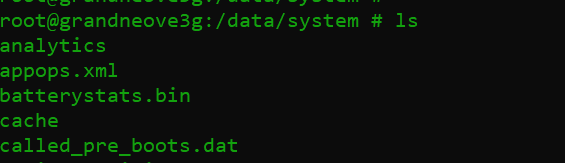
- Open the batterystat.bin Follow the above steps for change permission to open the bin file in Winhex.
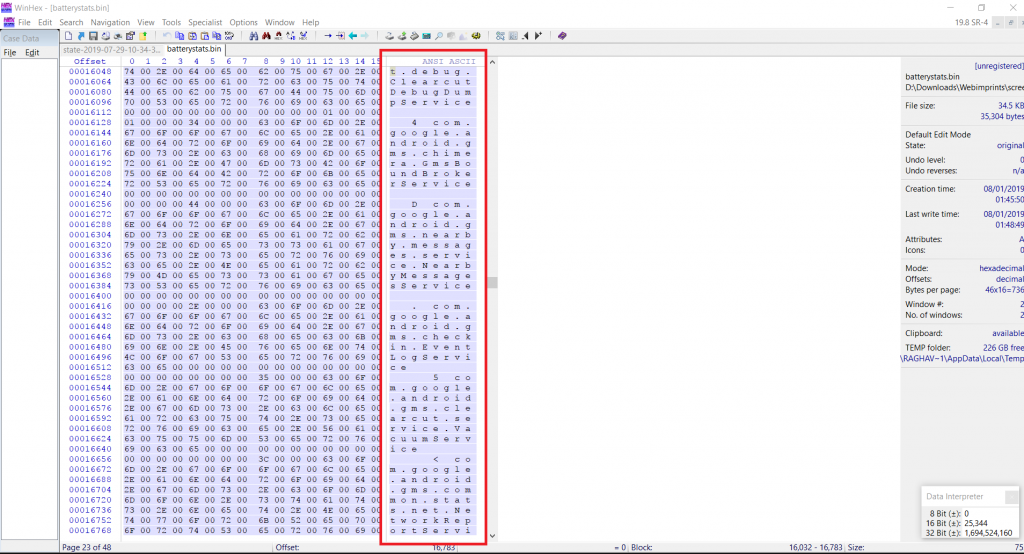
- The above screenshot shows Android services that are running on the device. From here information can be gathered on what applications are spending time. The above editor only shows the application package names.
- You can find main apps by searching application package names on the internet.
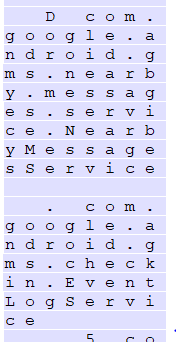
Close view batterystat.bin
The above shows two service
Event logs & Message
Application
