






















Regular updates of any operating system are a good maintenance option. It not only keeps computers from malware attacks but also gives new features for doing our work quickly. Users should install regular updates because they hold critical patches and security loopholes. But many times these updates slow down the system's performance. And there are many reasons that users want to disable Windows updates & defender. According to ethical hacking researcher at International Institute of Cyber Security many users are finding problems in recent Windows 10 updates. We will show you how you can disable Windows updates & defender automatically and manually in 2 minutes.
- For testing, we will be using Windows 10 with build version 1809.
AUTOMATIC WAY TO DISABLE WINDOWS DEFENDER:-
- In this way, you simply have to install a small tool for enabling or disabling Windows.
- Download tool from: http://www.site2unblock.com/download/win-updates-disabler-setup.exe
- After downloading the tool. Install the win-update-disable-setup.exe. Launch the tool.
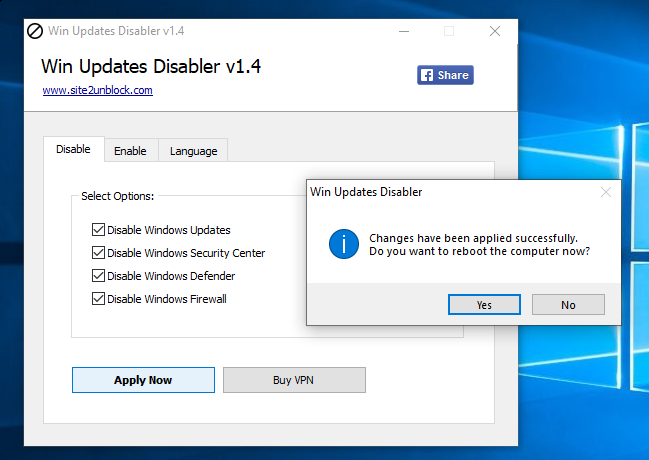
- For disabling, click on disable. Check the Disable options. It will ask for rebooting the Windows. After rebooting you will see that Windows Defender & Update services have been disabled.
- Windows Defender Real-time protection is off.
- For enabling, click on enable. Check all the enable options. It will again ask for rebooting the computer. And all the services will start.
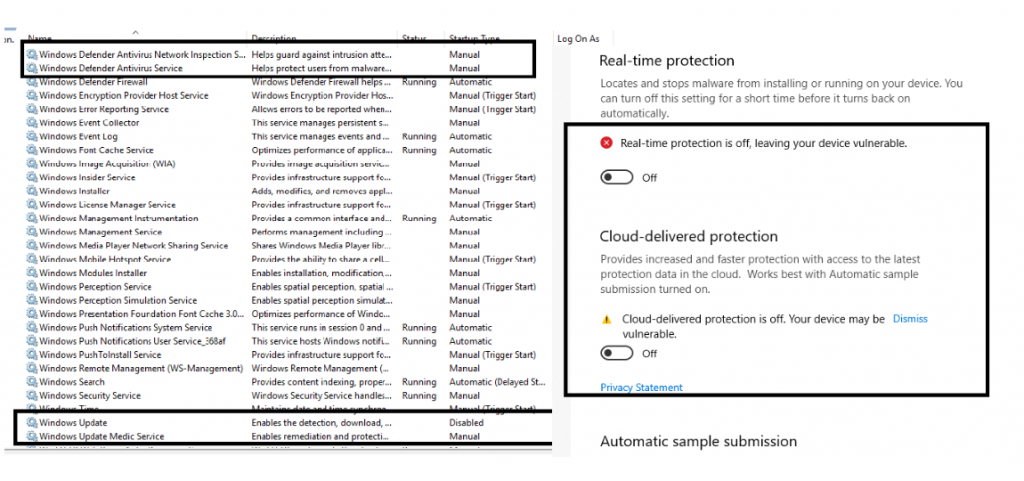
- The above screenshot shows that Windows Defender & updates are disabled.
- If you enable the services, services will start running.
MANUAL WAY TO DISABLE WINDOWS DEFENDER:-
- For disabling, Windows Defender. You have to run a small script.
REG ADD "HKLM\Software\Policies\Microsoft\Windows Defender" /v DisableAntiSpyware /t REG_DWORD /d 1 /f
- Write the above script in Notepad save the file in bat format and then run the script from CMD with admin privilege.
- This script will add DWORD value to HKLM\Software\Policies\Microsoft\Windows Defender.
- After running the script from CMD. it will print a message.
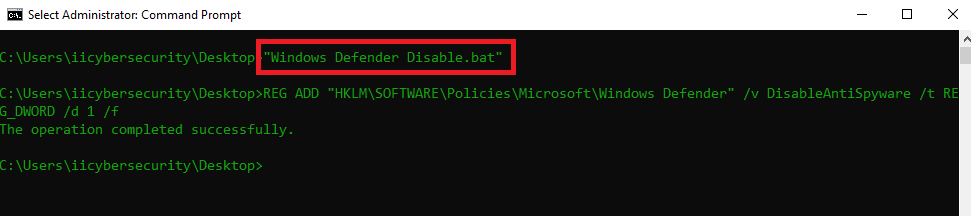
- The above screenshot that DWORD has been added successfully & defender has been disabled.
- You can add this script to the start-up path of the Windows registry to disable Defender from starting after reboot.
