



















There are many tools used by network administrators to scan networks. Continuous network scanning is done to check if any malicious activity is going or not. Probably, Wireshark is the most used tool in ethical hacking courses offered by the International Institute of Cyber Security to check running activity on the network.
According to the ethical hacking researcher of the International Institute of cyber security, tshark is used in network pentesting. Data packets play an important role in network transmission. Many packet analyzers are used by network administrators to scan for data packets. Today we came up with another data packet analyzer called Termshark. Termshark is a terminal version of Wireshark. Termshark is written in GO-LANG GO.
FEATURES OF TERMSHARK :-
- Analyze each packet using Wireshark views. Filter pcaps or live captures using Wireshark’s display filters
- Copy ranges of packets to clipboard from the terminal written in Golang, compiles to a single executable on each platform – downloads available for Linux (+termux), macOS, FreeBSD, and Windows.
- Read pcap files or sniff live interfaces (where tshark is permitted).
INSTALLATION:-
- For testing, we have used Kali Linux 2019.1 amd64. Before installing termshark. GO must be installed. Type sudo apt-get update && sudo apt-get install golang
- Then type echo $GOPATH
- Type GOPATH=/root/go/ to set the GO path.
- Type sudo apt-get install tshark
- Now you can download tshark from GitHub. For that type git clone https://github.com/gcla/termshark.git
- or Type go get github.com/gcla/termshark/cmd/termshark
- Or you can use the pre-build of termshark from: https://github.com/gcla/termshark/releases
- or Type wget https://github.com/gcla/termshark/releases/download/v1.0.0/termshark_1.0.0_linux_x64.tar.gz
- Type tar -xvzf termshark_1.0.0_linux_x64.tar.gz
- Type cd termshark_1.0.0_linux_x64
- Type ./termshark – This pre-build offers a Command Line Based GUI interface.

- First, we will analyze the termshark with Command Line then we will show Command Line Based GUI interface.
USAGE OF TERMSHARK:-
- Type tshark -h
- -h shows the help menu.
root@kali:~/Downloads# tshark -h
 Running as user "root" and group "root". This could be dangerous.
 tshark: option requires an argument -- 'f'
 Usage: tshark [options] …
 Capture interface:
   -i            name or idx of interface (def: first non-loopback)
   -f       packet filter in libpcap filter syntax
   -s              packet snapshot length (def: appropriate maximum)
   -p                       don't capture in promiscuous mode
   -I                       capture in monitor mode, if available
   -B          size of kernel buffer (def: 2MB)
   -y
           link layer type (def: first appropriate)
   --time-stamp-type  timestamp method for interface
   -D                       print list of interfaces and exit
   -L                       print list of link-layer types of iface and exit
   --list-time-stamp-types  print list of timestamp types for iface and exit
- Type tshark -i wlan0
- -i is used to assign network interface.
- For checking the network interface, type iwconfig
root@kali:~/go# iwconfig
 wlan0     IEEE 802.11  ESSID:"H###W##"
           Mode:Managed  Frequency:2.457 GHz  Access Point: ##:##:##:8D:##:E4
           Bit Rate=65 Mb/s   Tx-Power=20 dBm
           Retry short limit:7   RTS thr=2347 B   Fragment thr:off
           Encryption key:off
           Power Management:on
           Link Quality=67/70  Signal level=-43 dBm
           Rx invalid nwid:0  Rx invalid crypt:0  Rx invalid frag:0
           Tx excessive retries:0  Invalid misc:74   Missed beacon:0
- Type tshark -i wlan0
- -i is used to assign network interface.
- This query will start capturing local packets.
root@kali:~/Downloads# tshark -i wlan0
 Running as user "root" and group "root". This could be dangerous.
 Capturing on 'wlan0'
     1 0.000000000  192.168.1.3 → 192.168.1.10 TCP 60 3047 → 22 [ACK] Seq=1 Ack=1 Win=253 Len=0
     2 0.589627876 192.168.1.10 → 192.168.1.3  SSH 214 Server: Encrypted packet (len=160)
     3 0.799904360  192.168.1.3 → 192.168.1.10 TCP 60 3047 → 22 [ACK] Seq=1 Ack=161 Win=252 Len=0
     4 1.103457921 192.168.1.10 → 192.168.1.3  SSH 310 Server: Encrypted packet (len=256)
     5 1.302880225  192.168.1.3 → 192.168.1.10 TCP 60 3047 → 22 [ACK] Seq=1 Ack=417 Win=251 Len=0
     6 1.615306911 192.168.1.10 → 192.168.1.3  SSH 310 Server: Encrypted packet (len=256)
     7 1.815734300  192.168.1.3 → 192.168.1.10 TCP 60 3047 → 22 [ACK] Seq=1 Ack=673 Win=256 Len=0
     8 2.127450002 192.168.1.10 → 192.168.1.3  SSH 310 Server: Encrypted packet (len=256)
     9 2.335133706  192.168.1.3 → 192.168.1.10 TCP 60 3047 → 22 [ACK] Seq=1 Ack=929 Win=255 Len=0
    10 2.639471642 192.168.1.10 → 192.168.1.3  SSH 310 Server: Encrypted packet (len=256)
    11 2.850235384  192.168.1.3 → 192.168.1.10 TCP 60 3047 → 22 [ACK] Seq=1 Ack=1185 Win=254 Len=0
    12 3.151440488 192.168.1.10 → 192.168.1.3  SSH 310 Server: Encrypted packet (len=256)
    13 3.360222085  192.168.1.3 → 192.168.1.10 TCP 60 3047 → 22 [ACK] Seq=1 Ack=1441 Win=253 Len=0
    14 3.539527427  192.168.1.3 → 239.255.255.250 SSDP 216 M-SEARCH * HTTP/1.1
- The above query has captured TCP packets with Sequence & acknowledgment. The sequence number is used to break large data into smaller ones. Mentioning each IP address with every networking protocol.
- The acknowledgment number field contains the next sequence number that the sender of acknowledgment expects to receive.
- The complete analysis of sequence numbers and acknowledge numbers is an interesting part of the ethical hacking courses offered by the International Institute of Cyber Security in Delhi, India.
CAPTURING DESIRED DATA PACKET:-
- Type tshark -i wlan0 UDP
- -i is used for mentioning the network interface. wlan0 is our network interface.
- tshark will capture only UDP packets.
root@kali:~# tshark -i wlan0 udp
 0Running as user "root" and group "root". This could be dangerous.
 Capturing on 'wlan0'
     1 0.000000000 192.168.1.10 → 192.168.1.255 BROWSER 243 Host Announcement DESKTOP-382RT0N, Workstation, Server, NT Workstation
     2 10.047894475  192.168.1.6 → 192.168.1.1  DNS 71 Standard query 0x575b A youtube.com
     3 10.047935767  192.168.1.6 → 192.168.1.1  DNS 71 Standard query 0x1367 AAAA youtube.com
     4 10.068684885  192.168.1.1 → 192.168.1.6  DNS 314 Standard query response 0x575b A youtube.com A 216.58.200.174 NS ns3.google.com NS ns4.google.com NS ns2.google.com NS ns1.google.com A 216.239.32.10 A 216.239.34.10 A 216.239.36.10 A 216.239.38.10 AAAA 2001:4860:4802:32::a AAAA 2001:4860:4802:36::a AAAA 2001:4860:4802:38::a
     5 10.136276096  192.168.1.1 → 192.168.1.6  DNS 326 Standard query response 0x1367 AAAA youtube.com AAAA 2404:6800:4002:811::200e NS ns1.google.com NS ns2.google.com NS ns4.google.com NS ns3.google.com A 216.239.32.10 A 216.239.34.10 A 216.239.36.10 A 216.239.38.10 AAAA 2001:4860:4802:32::a AAAA 2001:4860:4802:36::a AAAA 2001:4860:4802:38::a
     6 10.352876669  192.168.1.6 → 192.168.1.1  DNS 73 Standard query 0x05c2 A ocsp.pki.goog
     7 10.358805848  192.168.1.1 → 192.168.1.6  DNS 344 Standard query response 0x05c2 A ocsp.pki.goog CNAME pki-goog.l.google.com A 172.217.166.3 NS ns1.google.com NS ns2.google.com NS ns4.google.com NS ns3.google.com A 216.239.32.10 A 216.239.34.10 A 216.239.36.10 A 216.239.38.10 AAAA 2001:4860:4802:32::a AAAA 2001:4860:4802:36::a AAAA 2001:4860:4802:38::a
     8 10.556555958  192.168.1.6 → 192.168.1.1  DNS 75 Standard query 0x4d56 A www.youtube.com
     9 10.556594357  192.168.1.6 → 192.168.1.1  DNS 75 Standard query 0xe65e AAAA www.youtube.com
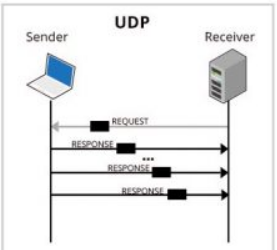
- UDP (User Datagram Protocol) is used in sending short messages. UDP network traffic is organized in the form of datagrams. It's an unreliable & connectionless protocol.
- The above query has gathered different records after assigning the UDP protocol. Firstly, the show request is sent to the browser. Then it shows the DNS (Domain Name System) request for the URL (youtube.com) with the IP address of 216.58.200.174. You can also check the same with nslookup.
- Using Name Server (NS) ns1.google.com with standard DNS query.
TERMSHARK COMMAND LINE-BASED GUI INTERFACE:-
- Type cd termshark_1.0.0_linux_x64
- Type ./termshark -i wlan0
- -i is used for mentioning the network interface. wlan0 is our network interface.
- Press ? button on your computer’s keyboard.
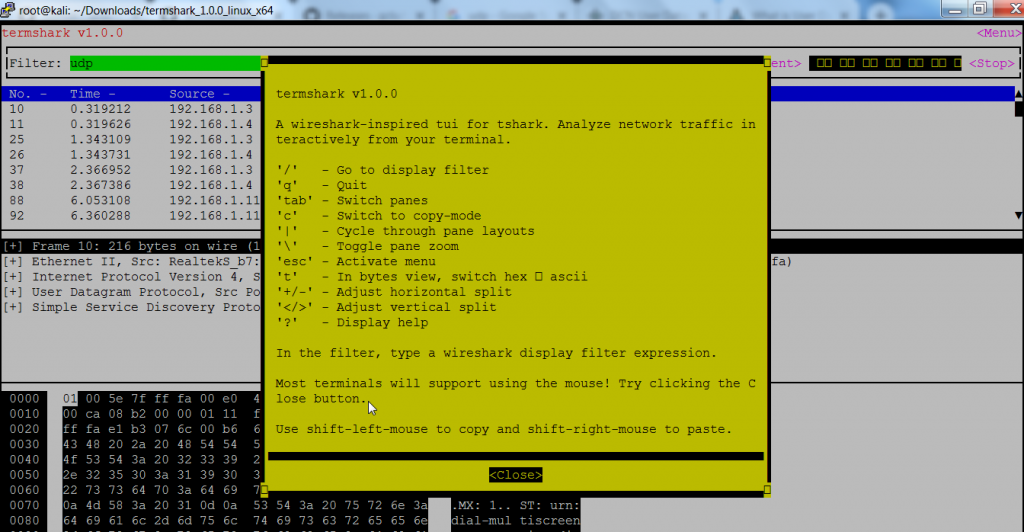
- The above query shows captured packets & help menu.
PACKET FILTERING WITH COMMAND LINE-BASED GUI:-
- Type ./termshark -i wlan0
- -i is used for mentioning the network interface. wlan0 is our network interface.
- After termshark will start capturing the packet. In the Filter dialog box, you can enter any protocol. Here we have typed UDP. After typing UDP click on apply to capture only UDP packets.
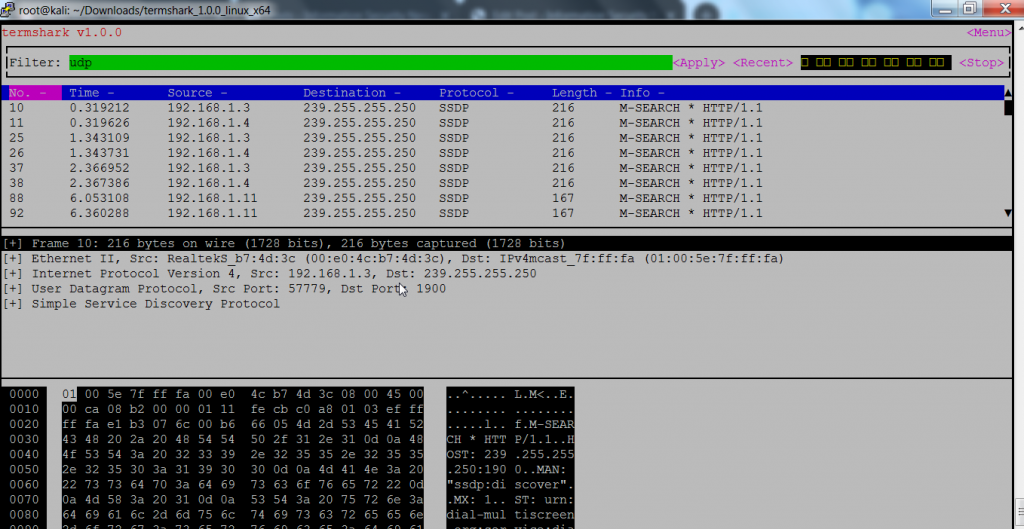
- The above output shows the transmission of packets, showing the source & destination IP address with the length of the packet. Below You will see how UDP works.
- Each packet shows with time taken for transmission.
- Opening the first packet frames shows the packet is 216 bytes. Then it shows the arrival time & time shift of the packet.
- Further analysis shows the request version & the User-agent used in transferring data packets.
FOR VIEWING ONLY PACKETS TRANSMISSION:-
- Type ./termshark -i wlan0
- -i is used for mentioning the network interface. wlan0 is our network interface.
- Press the / button on the keyboard to view only packets transmission.

- The above output shows packet transmission in the internal network. You can see packets transactions between two IPv4 addresses.
- Then it shows encrypted ethernet packet size len= 64. With Seq =1 & changing acknowledgment.
OPENING PCAP FILES :-
- Now many times you receive the pcap file during your projects with the International Institute of Cyber Security to analyze the packet flow and do cyber forensics on the pcap file.
- You can open any saved files from any other network analyzer. Here we have opened another pcap file which was saved after capturing the internal network with wireshark.
- For opening pcap files. Type ./termshark -r wlan0-299382837.pcap
- -r is used to mention pcap file. 299382837 is a pcap file.
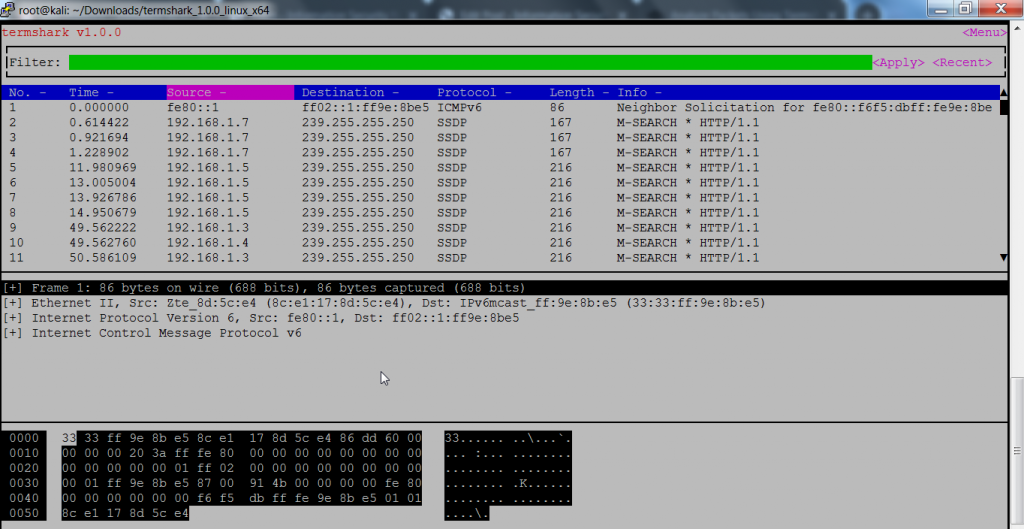
- The above screenshot shows the packet transmission of network protocols UDP & ICMP. Further, it shows packet transmission using HTTP 1.1 with the time it took to transfer packets from source to destination IP address.
