






















Steganography is a common term that is used in hiding or encrypting any personal information. The information can be anything that you don’t want to share. The art of hiding personal data, mention cyber forensics experts. Today most companies use these techniques to hide sensitive content inside an image. There are various ways of hiding personal content like txt, mp3, wav, and many other formats which are supported by this method. This practice is old but still useful, according to cyber forensics courses. As there are some loopholes in this technique. Today there are many tools and softwares are available to decrypt encrypted data from images and also steganography is popular in exploit kits. We will show you some of the tools that are used to encrypt and decrypt data from images.
HOW STEGANOGRAPHY WORKS :-
Every image we see electronically such as on mobile, television, and computers consists of some pixels. Those pixels are called the smallest component of an image. In each image, pixels are produced by three to four colors. Those colors are red, green, blue, white. The RGB model is common for video displays and other video components that are used in watching an image on the electronic screen. These RGB model are added together to create an array of color. These colors are known are primary supplements when they are mixed in equal amounts. These colors create while. And when they are mixed with different amounts other colors are formed.
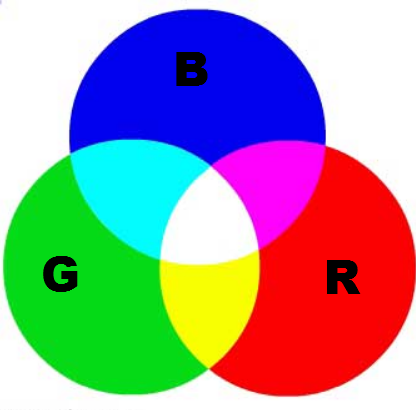
As shown above, the RGB forms different colors on screen. In binary codes, it forms different colors in steganography. When images are combined in steganography the rgb changes its colors as shown below, explain cyber forensics professors.
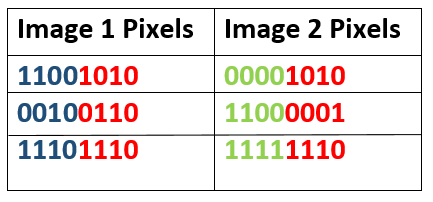
As shown above, when two images are combined a new image is formed. In steganography in the right most bits are changed as it shows a very minor visual effect on the image.

As you can see when image 2 is hiding data in it. As steganography, the changes in the right are most in bits in the image.

As shown above the left most of it is a simple image. But the right image is most an image hiding another image. If you look carefully second image in the above figure holds encrypted data. Below is the Python code that shows how an image is hidden in another image, cyber forensics consultants demonstrate.
#encoding
steg = LSBSteg(cv2.imread("image_1.png")
new_im = steg.encode_image(cv2.imread("image_2.jpg")) cv2.imwrite("Desert.png", new_im)

#decoding
steg = LSBSteg("new_image.png")
orig_im = steg.decode_image()
cv.SaveImage("Desert.png", orig_im)
As shown above, in code image 1 is hided in image 2. The above is the common code used to hide images in image. Now we will see txt code that how txt is hidden in image. The above code uses simple parameters to hide images.
#encoding
steg = LSBSteg(cv2.imread("my_image.png"))
img_encoded = steg.encode_text("sensitive_data") cv2.imwrite("Desert.png", img_encoded)

#decoding
 im = cv2.imread("Desert.png")
steg = LSBSteg(im)
print("Text value:",steg.decode_text())
The above is the basic code shows that how text is hidden inside an image. The above code consists of encoded methods which are used in hiding text files. Now we will show you some of the tools that are used in hiding data inside an image.
STEGOHIDE – HIDES DATA INSIDE AN IMAGE.
Stegohide is a simple program used to hide data inside an image. According to the digital forensic expert of International Institute of Cyber Security, the color frequencies are not changed in this program as it hides only minimal data. Stegohide current version is 0.5.1. This program encrypts data. When a user hides txt file inside this program it asks to put a passphrase. A passphrase is the key that is used to encrypt and decrypt sensitive information, cyber forensics teachers say.
- The tool comes in Linux as well as Windows utility but we have tested on Windows OS. It can be downloaded from : https://sourceforge.net/projects/steghide/files/steghide/0.5.1/steghide-0.5.1-win32.zip/download?use_mirror=excellmedia&download=
- After downloading an RAR file. Unzip the rar file and open the stegohide.exe in cmd.
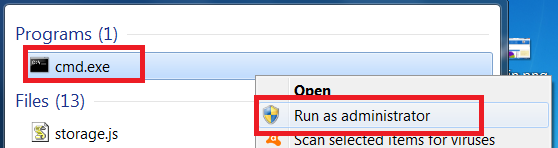
- For that go to the start menu and type cmd. After typing right click on cmd and open cmd as administrator.
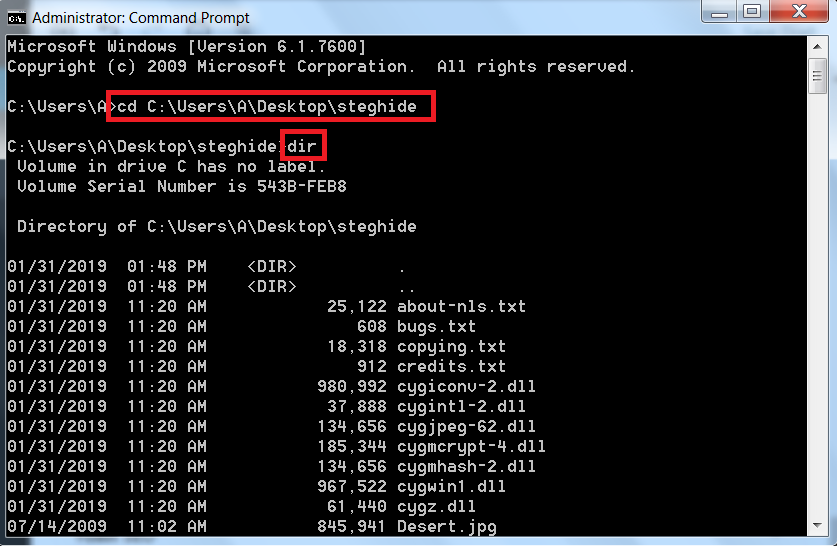
- After opening it as administrator. Navigate to location/where/you/unzip/stegohide. Type dir
- Then type stegohide.exe
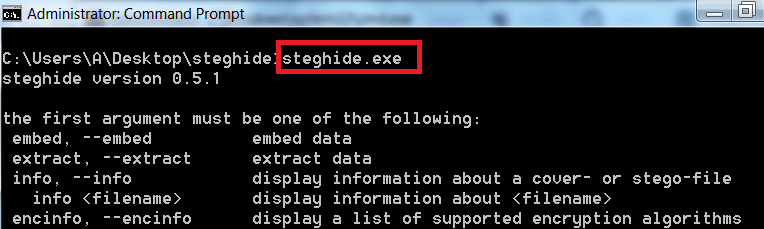
- You can choose any image to encrypt data. We have chosen windows default image to show you.
- Type stegohide embed -cf Desert.jpg -ef “secret info.txt”
- -cf is used for cover file
- -ef is used to encrypt sensitive data.
- Type passphrase as your password. Type 123456 for encrypting

- After executing above query the data is now hidden. Now you can delete the original file.
- Now for decrypting type steghide extract -sf Desert.jpg

- After executing the data will be decrypted in its original form. The above information can be used in other hacking activities. In hacking it can be helpful while sending any encrypted message or binding any malware.
- Type steghide –info Desert1.jpg
- Type y
- Type your passphrase as your password. Type 123456 for encrypting
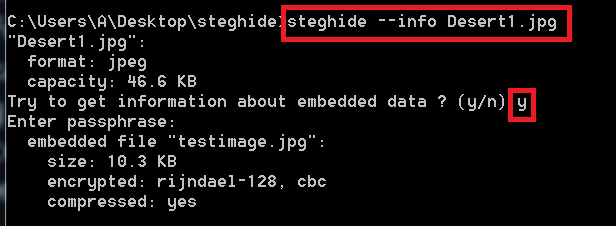
- In the above image first command is used to check basic info of the file. And if the data is encrypted in that image.
- Encrypted data details can also be seen by typing passphrase.
- Type steghide –encinfo to view all the algorithms.
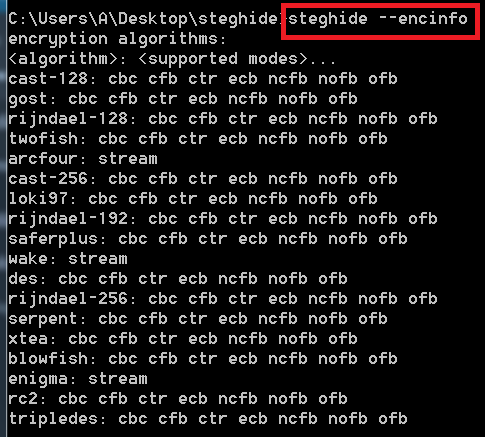
- The above query shows the algorithms that are used in encrypting data. Knowing an algorithms of any encrypting program may lack into security as additional decrypters can be created easily.
- The above commands which are used in encrypting data uses rijndael-256 encryption to hide text files.
- Type steghide embed -cf Desert.jpg -f -ef “secret info.txt”
- -cf is used for cover file
- -ef is used to encrypt sensitive data.
- -f will overwrite the file.
- Type passphrase as your password. Type 123456 for encrypting

- After executing same file will be overwritten if any changes are done in a hidden text file.
- Type steghide -N -cf Desert.jpg -ef “secret info.txt”
- -N will not embed the original file name.
- -cf is used for the cover file.
- -ef is used to encrypt sensitive data.

- The above tool is used to encrypt the data without the taking hidden file name. Be sure to encrypt data by using this command.
- As if you try to decrypt data it will not decrypt as it requires an embedded file name while decrypting.

FOREMOST – RECOVER FILES USING THIS TOOL:-
Foremost is another Linux utility that recovers deleted files in the Linux system. Data recovery is the process in which deleted or corrupted data is recovered. Foremost is a simple utility that is pre-installed in many systems. An initial configuration is already done in Kali Linux for use foremost. If you are using any other Linux Distros.
- Type git clone https://github.com/korczis/foremost.git
- Then type make
- Type make install
- And if you are Kali Linux 2018.4. Simply type foremost –
root@kali:/home/iicybersecurity/Downloads/foremost# foremost -h
 foremost version 1.5.7 by Jesse Kornblum, Kris Kendall, and Nick Mikus.
 $ foremost [-v|-V|-h|-T|-Q|-q|-a|-w-d] [-t ] [-s ] [-k ]
         [-b ] [-c ] [-o
] [-i <file]
 -V  - display copyright information and exit
 -t  - specify file type.  (-t jpeg,pdf …)
 -d  - turn on indirect block detection (for UNIX file-systems)
 -i  - specify input file (default is stdin)
 -a  - Write all headers, perform no error detection (corrupted files)
 -w  - Only write the audit file, do not write any detected files to the disk
 -o  - set output directory (defaults to output)
 -c  - set configuration file to use (defaults to foremost.conf)
 -q  - enables quick mode. Search are performed on 512 byte boundaries.
 -Q  - enables quiet mode. Suppress output messages.
 -v  - verbose mode. Logs all messages to screen
- Here we have used a sample pdf file to test whether it recovers the file or not.
root@kali:/home/iicybersecurity# ls
 core  Desktop  Documents  Downloads  Music  output   Pictures  Public  sample.pdf  Templates  Videos
- Type cat sample.pdf
root@kali:/home/iicybersecurity# cat sample.pdf
 %PDF-1.3
 %▒▒▒▒
 1 0 obj
 <<
 /Type /Catalog
 /Outlines 2 0 R
 /Pages 3 0 R
   >
   endobj
 2 0 obj
 <<
 /Type /Outlines
 /Count 0
   >
   endobj
 3 0 obj
 <<
 /Type /Pages
 /Count 2
 /Kids [ 4 0 R 6 0 R ]
   >
   endobj
 4 0 obj
 <<
 /Type /Page
 /Parent 3 0 R
 /Resources <<
 /Font <<
 /F1 9 0 R
   >
   /ProcSet 8 0 R
   >
   /MediaBox [0 0 612.0000 792.0000]
   /Contents 5 0 R
   >
   endobj
 5 0 obj
 << /Length 1074 >>
 stream
 2 J
 BT
 0 0 0 rg
 /F1 0027 Tf
 57.3750 722.2800 Td
 ( A Simple PDF File ) Tj

- Type rm sample.pdf
 root@kali:/home/iicybersecurity# ls
 core  Desktop  Documents  Downloads  Music  output   Pictures  Public  sample.pdf  Templates  Videos
root@kali:/home/iicybersecurity# rm sample.pdf
root@kali:/home/iicybersecurity# ls
root@kali:/home/iicybersecurity# ls
 core  Desktop  Documents  Downloads  Music  output   Pictures  Public Templates  Videos
- Type foremost -i sample.pdf -T pdf
- -i is used to specify an input file name.
- -T is used to enter the desired file extension. This option is required if the directory is not empty from where the file is deleted.
root@kali:/home/iicybersecurity# foremost -i sample.pdf -T pdf
 Processing: stdin
root@kali:/home/iicybersecurity#
- After executing the above query it takes time to recover the file.
- Type foremost -i sample.pdf -T pdf -o /home/iicybersecurity
 root@kali:/home/iicybersecurity# foremost -i sample.pdf -T pdf -o /home/iicybersecurity
 Processing: stdin
root@kali:/home/iicybersecurity#
- After the recovery is complete go to the output directory. Type cd output
root@kali:/home/iicybersecurity# ls
 core  Desktop  Documents  Downloads  Music  output  output_Thu_Jan_31_06_08_40_2019  Pictures  Public  Templates  Videos
root@kali:/home/iicybersecurity# cd output
- Type ls
- Type cat audit.txt
root@kali:/home/iicybersecurity/output# ls
 audit.txt  pdf
root@kali:/home/iicybersecurity/output# cat audit.txt
 Foremost version 1.5.7 by Jesse Kornblum, Kris Kendall, and Nick Mikus
 Audit File
 Foremost started at Thu Jan 31 06:08:13 2019
 Invocation: foremost -i sample.pdf
 Output directory: /home/iicybersecurity/output
 Configuration file: /usr/local/etc/foremost.conf
 File: sample.pdf
 Start: Thu Jan 31 06:08:14 2019
 Length: 2 KB (3028 bytes)
 Num      Name (bs=512)         Size      File Offset     Comment
 0:      00000000.pdf           2 KB               0
 Finish: Thu Jan 31 06:08:14 2019
 1 FILES EXTRACTED
 pdf:= 1
 Foremost finished at Thu Jan 31 06:08:14 2019
- The above audit file shows the details of the file of what time and date the file was recovered.
- As shown above, pdf has been recovered with different file names but the contents of the files are the same.
- For opening files type cd pdf
- Type cat 00000000.pdf
root@kali:/home/iicybersecurity/output/pdf# cat 00000000.pdf
 %PDF-1.3
 %▒▒▒▒
 1 0 obj
 <<
 /Type /Catalog
 /Outlines 2 0 R
 /Pages 3 0 R
   >
   endobj
 2 0 obj
 <<
 /Type /Outlines
 /Count 0
   >
   endobj
 3 0 obj
 <<
 /Type /Pages
 /Count 2
 /Kids [ 4 0 R 6 0 R ]
   >
   endobj
 4 0 obj
 <<
 /Type /Page
 /Parent 3 0 R
 /Resources <<
 /Font <<
 /F1 9 0 R
   >
   /ProcSet 8 0 R
   >
   /MediaBox [0 0 612.0000 792.0000]
   /Contents 5 0 R
   >
   endobj
 5 0 obj
 << /Length 1074 >>
 stream
 2 J
 BT
 0 0 0 rg
 /F1 0027 Tf
 57.3750 722.2800 Td
 ( A Simple PDF File ) Tj
- As you can see the file data is exactly same as it was earlier before deleting.
