





















MALTEGO INTRO:- According to ethical hacking courses, Maltego is a tool used in information gathering. This tool is developed and maintained by Paterva. This tool is widely used by pentesters. Using Maltego will allow you to reconnaissance the target, mention ethical hacking investigators. Maltego is a cross-platform application available in Linux as well as in Windows and Mac. With maltego, information can be found like – domain names, social media links, ipv4. It’s a tool completely designed for network reconnaissance.
Ethical hacking researcher of International Institute of Cyber Security says maltego is a very common tool that is used in the initial phase of pentesting.
- Maltego comes pre-installed in Kali Linux if you are using any other OS. Click here to get: maltego: https://www.paterva.com/web7/downloads.php
- In the below example, we have taken Windows OS to show maltego works. The user interface of maltego is the same in every OS.

- If Java is not installed on your machine then click on this option and then click on download. The download file will have Java as well as maltego.
- If Java is installed then click on .exe and then on download.

- Below are the installation steps of the maltego.
- Click on the executable file:-

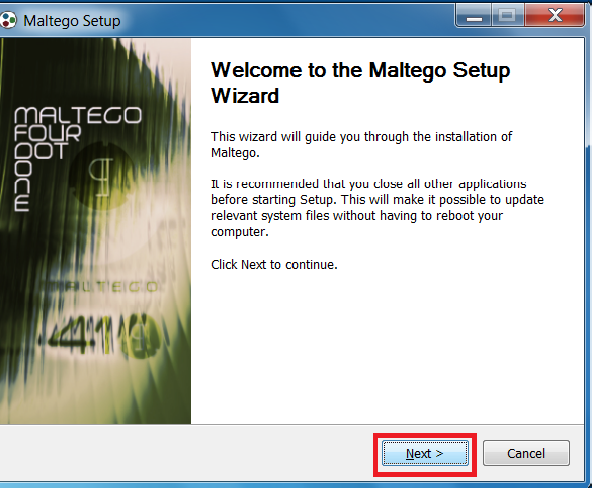
- Click on next.
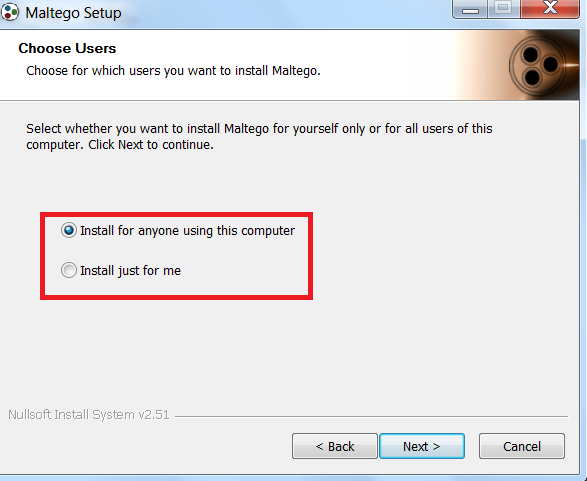
- Choose install for anyone using this computer or install just for me.
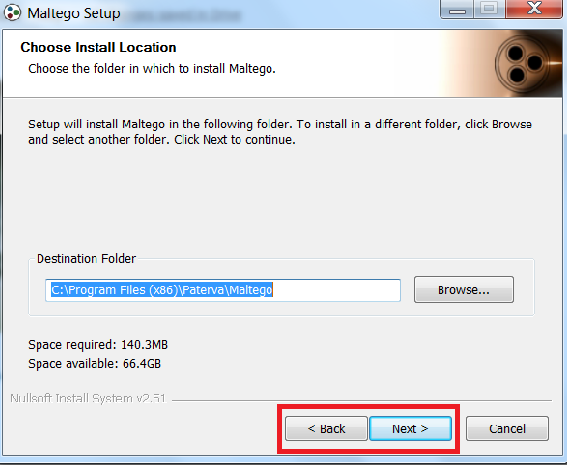
- Select the location where you want to install.
- Check this option if you do not wish to create a start menu shortcut.
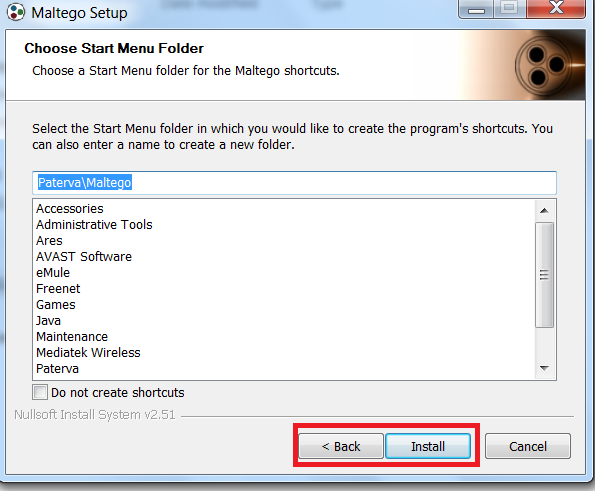
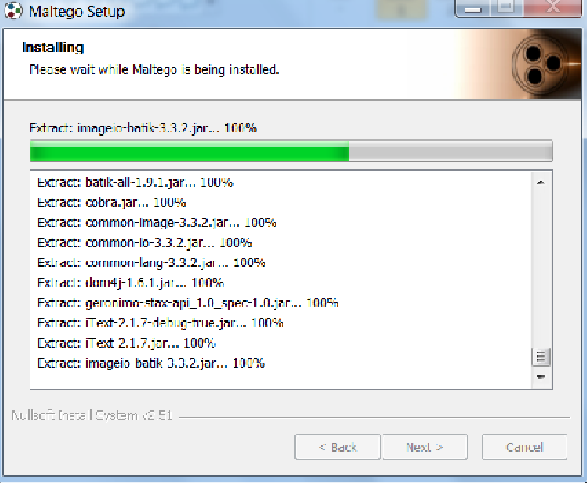
- Installation process.
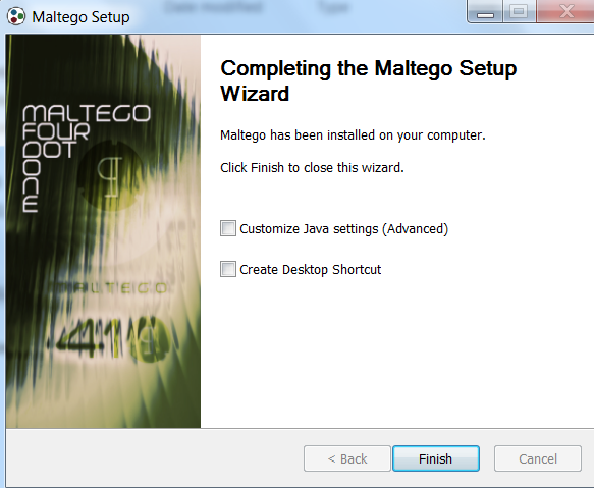
- After installing the maltego, you can customize the Java settings as per your requirement. But it is advisable to do nothing with Java settings and click on finish.
- Starting the maltego.

- The paid version can be used for commercial purposes and unpaid may not be used for commercial purposes.
- All the versions will show the complete graphs of the target. Now we will take up Maltago CE (Free) and move further.

- Click on accept and then click on next.

- Wait for the process to complete.

- Maltego requires you to sign in before using it.

- To use maltego, you must have an account in Paterva.

- After filling in the whole details, click on the register here as shown in red, or click here: https://www.paterva.com/web7/community/community.php
- After registering with the maltego. Sign in enter the captcha and click on next.

- Check the details and click on next as shown below.

- Login results will configure all the details entered above.

- Install transforms is being installed from the chosen server.

- Click on next and maltego will start.

- Choose the blank graph option.

- After completing the whole above process, maltego will start.
- Click on i understand show the privacy policy.

- Always update maltego before starting any scan. Click on the
 icon. Then go to tools and then click on check for the updates as shown below.

- Maltego will check for updates.

- Click on next and it will download the updates

- After updates are installed choose Restart Now and click on Finish.
- Maltego will restart.

- After restarting the maltego, you can use any or all entities to scan the target.

- First, you have to drop an entity from the entity palette.

- Entity – entities are used in information gathering. All the entities are found in entity palette in maltego. The entities are categorized in the groups.
- Graph – Graph is used where analysis is shown.
For scanning the target type the target name beneath the icon of the entity.
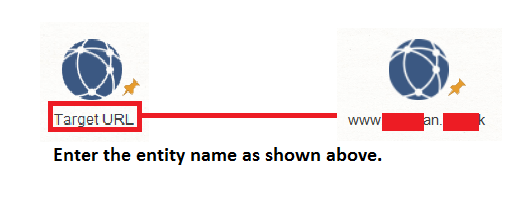
- Right-click on the entity and choose the transform as shown below.
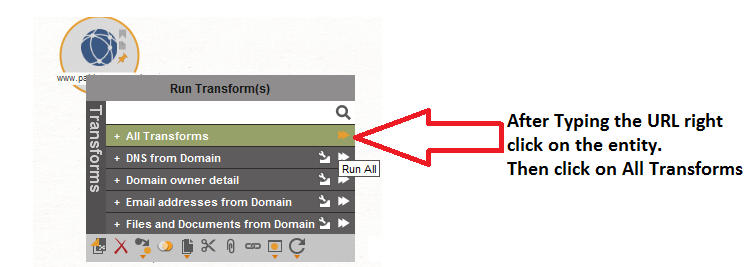
SCANNING THE TARGET :-
- Choose the entity domain, and enter the target URL: pakistan.gov.in as shown below.

- In the above screenshot, after scanning using all the transforms. Maltego has shown some of the other URLs of the target. The above URLs can be used in the initial phase of penetration testing. Or in a DDoS(Denial-of-Service) attack.
Maltego offers different layouts and views to examine the target.
- Organic Layout –

- Interactive Organic Layout –

- Block Layout –

- To get more results click on any entity and select the transform. The selected entity will be scanned.

- After scanning the target, the above records can be used in penetration testing. The above information can also be used in other hacking activities.
- You can also use the different view to analyze the target. Different views show the same information.

- In the above screenshot, the information is printed in normal table form.
